
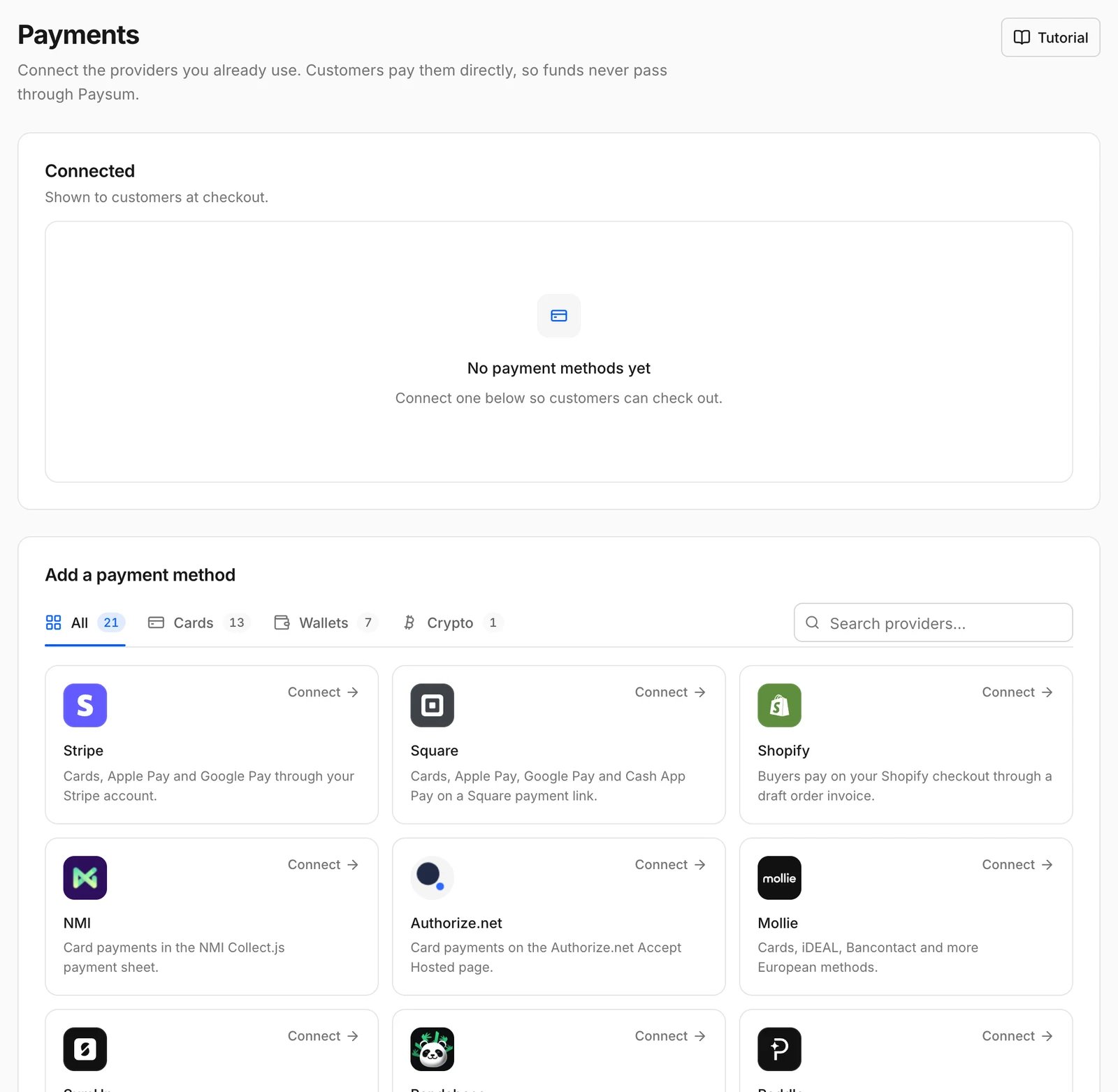
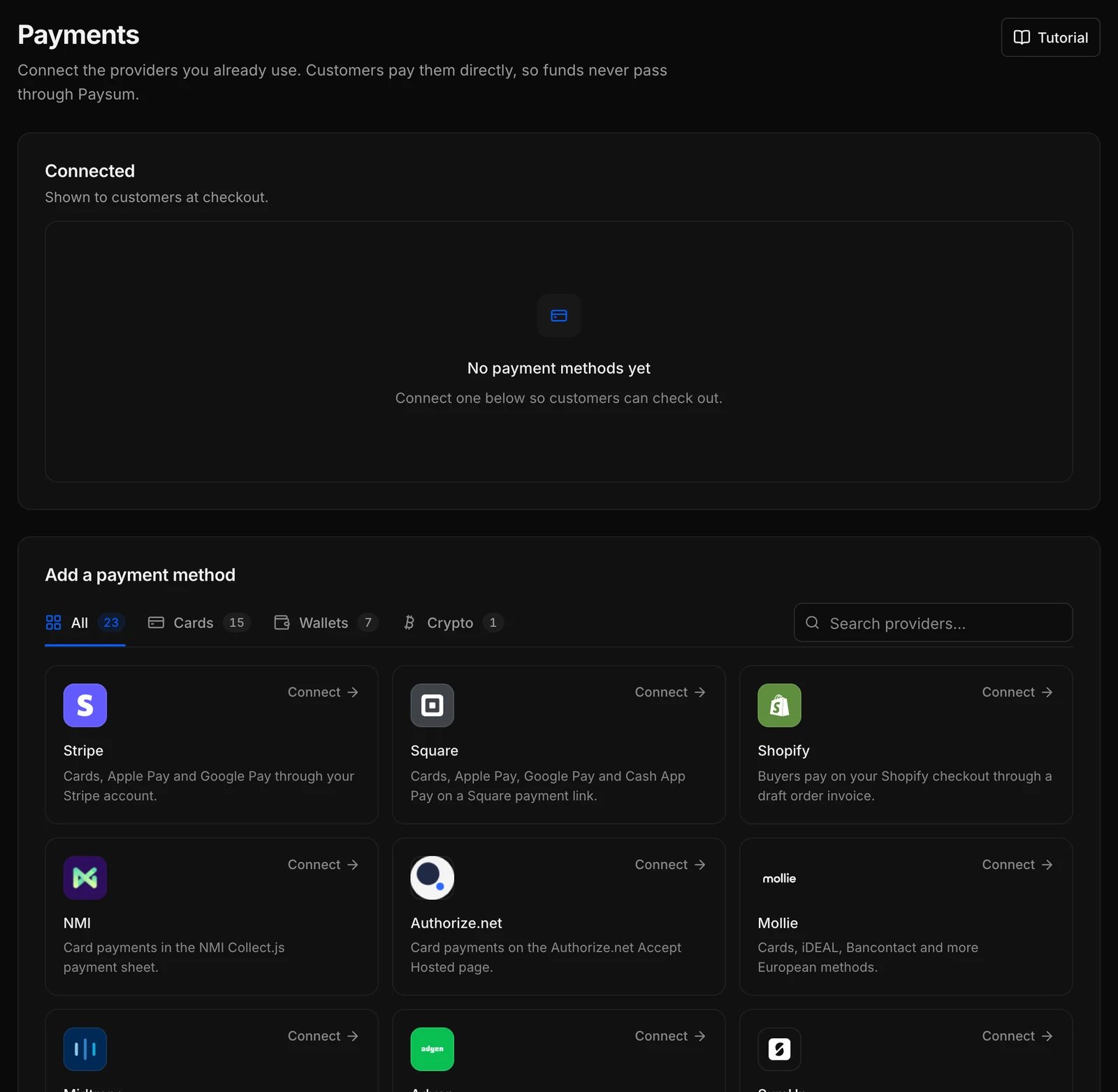
Find and configure payment methods in the PaySum dashboard.
Set it up
1
Open payment settings
Choose the store, then go to Payments → Payment setup.
2
Configure a method
Select a provider and enter the credentials, account details, or destination requested by the setup screen.
3
Set method-specific rules
Review discounts, extra charges, and minimum amounts before enabling the method.
4
Save and test
Check a product checkout in a separate browser session. Confirm the correct account receives the payment and the order reaches the expected state.
Which method to use
Cards and commerce

Stripe

Square

Shopify

NMI

Authorize.net

Mollie

SumUp

Pandabase

Paddle

Lemon Squeezy

Whop
 Adyen and
 Midtrans are also available in Payment setup. Midtrans requires an IDR store currency.
Wallets and alternative methods

PayPal
PayPal Friends & Family

Cash App

Venmo

Skinloop

OVGC
Crypto providers
NOWPayments

Heleket

Cryptomus

Coinbase
Only enabled methods are shown
Checkout combines store settings with product and variant restrictions. Enabling a method at the store level does not guarantee it is available for every product.Keep credentials private
API secrets belong in the payment settings or your own backend. Do not paste provider secrets into product descriptions, custom pages, or an embed button.Different methods confirm differently
Card and PayPal providers report payment results through their integrations. Crypto orders may wait for blockchain confirmation. Cash App and Venmo require the configured receipt-verification flow.If something does not work
If a method is missing, inspect its enabled state, required fields, product restrictions, and minimum order amount. If an order stays unpaid, inspect the provider’s actual transaction status rather than the browser return page.