
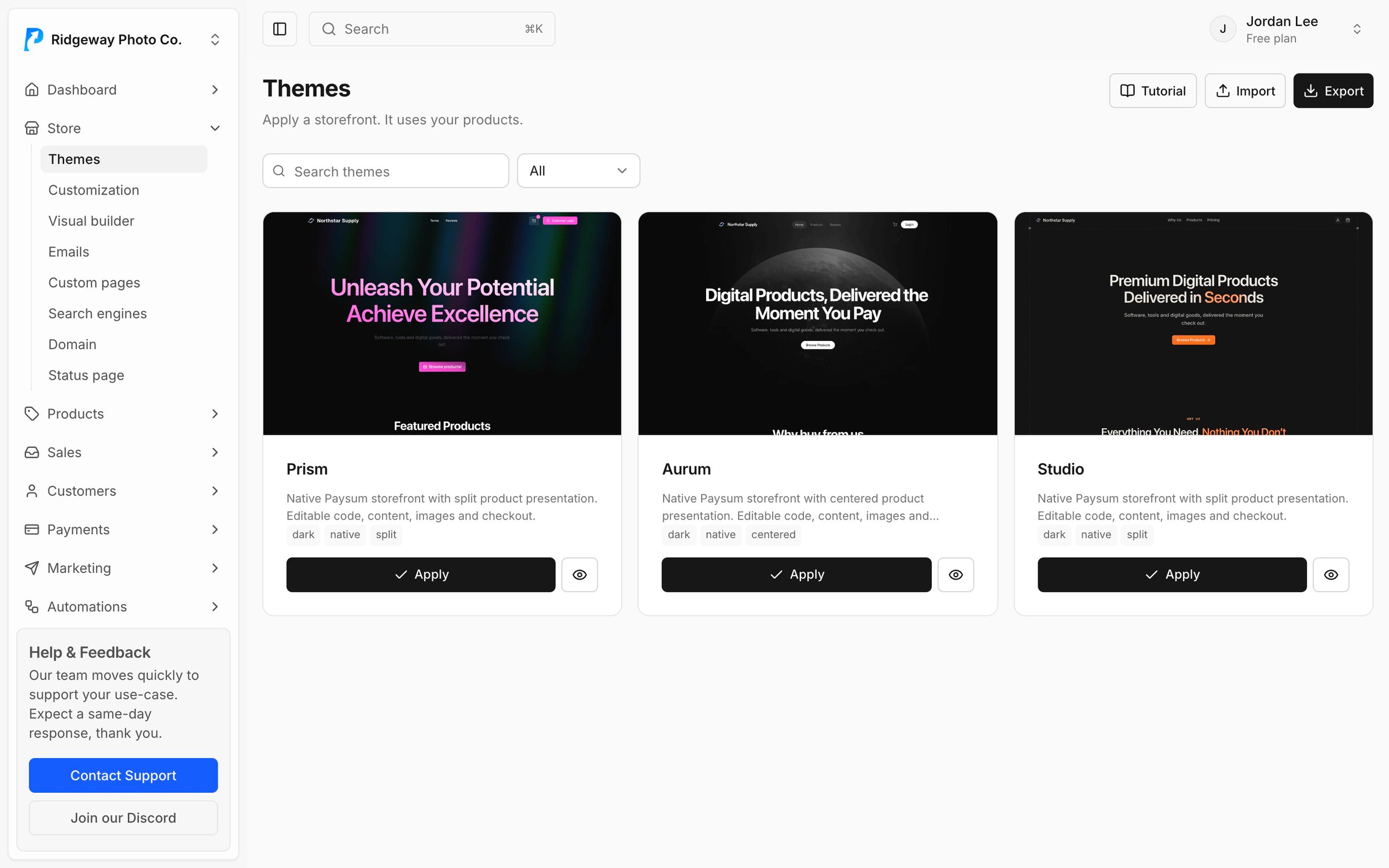
Preview and apply storefront themes from the PaySum dashboard.
Set it up
1
Start from a theme
Open Storefront → Themes and preview the available designs. Check both product cards and the mobile layout.
2
Apply your choice
Apply the theme to the selected store. Review the public storefront after applying; a theme preview is a demonstration, not your live catalog.
3
Make focused changes
Use Customization for supported store settings, Visual builder for visual edits, and Code builder for code-level changes.
4
Preview before publishing
Check navigation, product links, legal pages, cart controls, and checkout links after editing.
Published changes and previews
A saved draft or preview can differ from what customers see. Use the editor’s publish or apply action when you intend to update the public store, then visit the live URL in a separate tab.Keep checkout links working
Custom storefront code should continue to use the checkout and cart actions provided by the theme runtime. Do not put a secret API key into a theme, public script, or product description.If something does not work
If a page becomes blank after a code edit, return to the builder, inspect its errors, and restore a working version. Test a theme on a preview before replacing a working storefront.
Next steps
Store name, logo, and colors
Give your storefront a recognizable identity and preview changes before sharing it.
Custom pages
Publish useful store pages and add links visitors can find.
Checkout embed
Try an interactive checkout, copy the integration, and choose your language.